Feature overview

Built for people who need more than a simple catalog

Cove starts as a local organizer you can install, scan, and browse. As your library grows, it gives you better search, richer details, safer sharing, and room to add more through extensions.

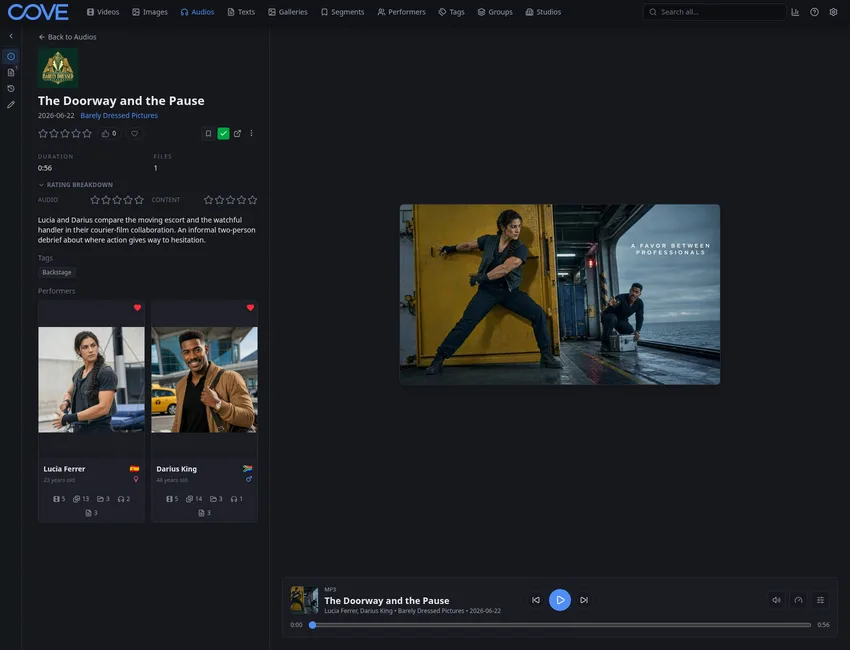
Cove audio detail page showing playback controls, metadata, and related media.
An audio detail page with playback, metadata, tags, and related content.

Your library

Keep more kinds of media in one place

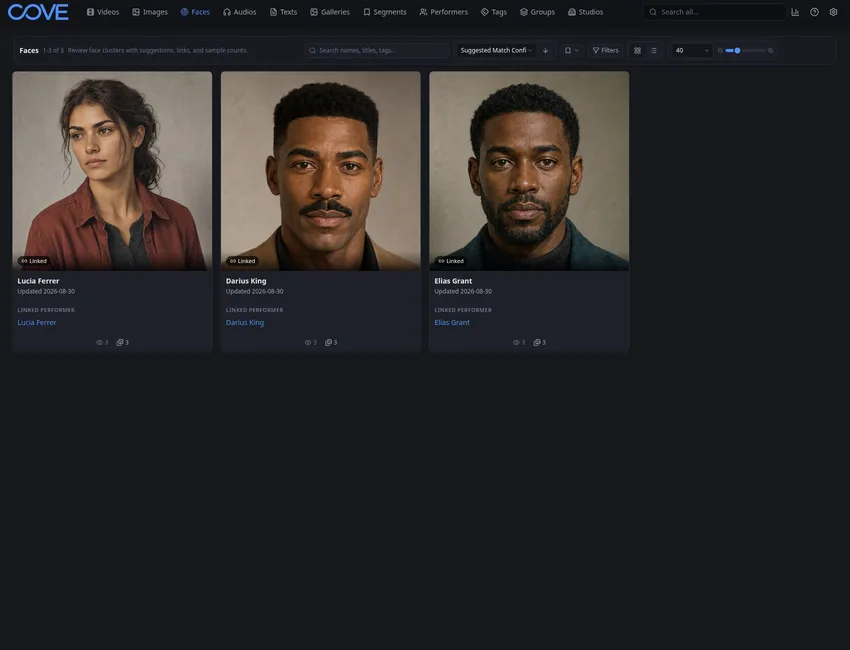
Cove is not limited to video. Keep videos, images, galleries, audio, and text together, then connect them with people, studios, tags, tag groups, groups, faces, and your own custom details.

  • Use one app for video, image, gallery, audio, and text collections.
  • Organize by the details you remember, not just by folders and filenames.
  • Browse, clean up, watch, and share from the same local library.
Read about media types

Global search

Jump straight to the thing you remember

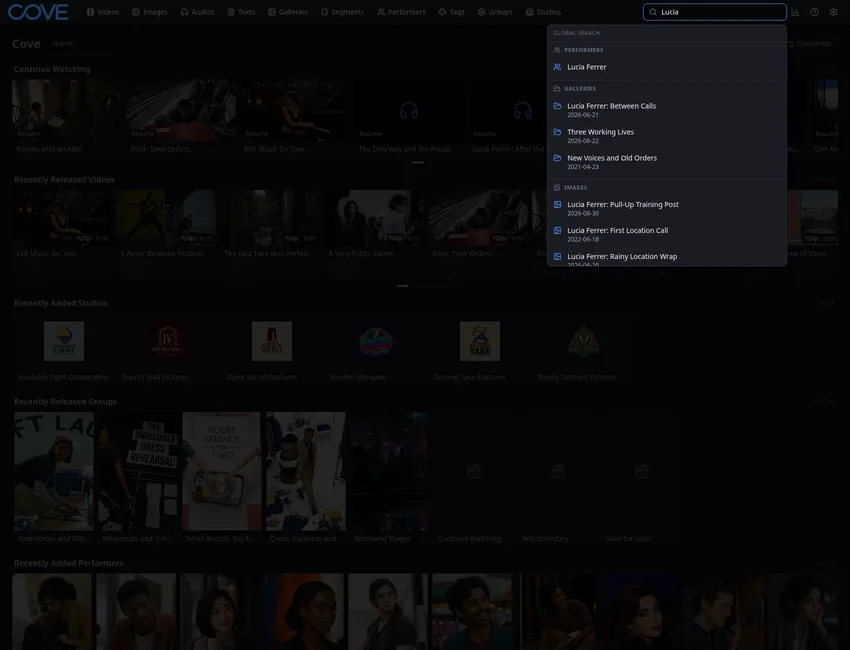
Search the whole library when you remember a person, tag, title, studio, or group but not where it lives. Cove can take you straight to the matching video, tag, person, group, or other library page.

  • Search across the whole library from the top bar.
  • Find things by names, tags, studios, groups, paths, and more.
  • Spend less time hunting through folders.
Read search and filter docs
Cove global search showing results for a library query.
Global search helps you jump to matching videos, people, tags, groups, and other library pages.
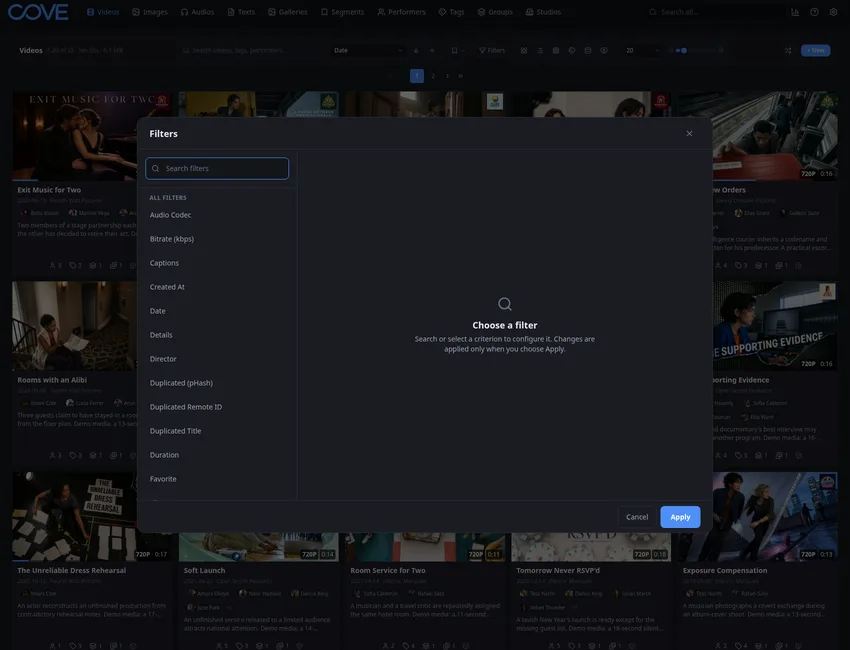
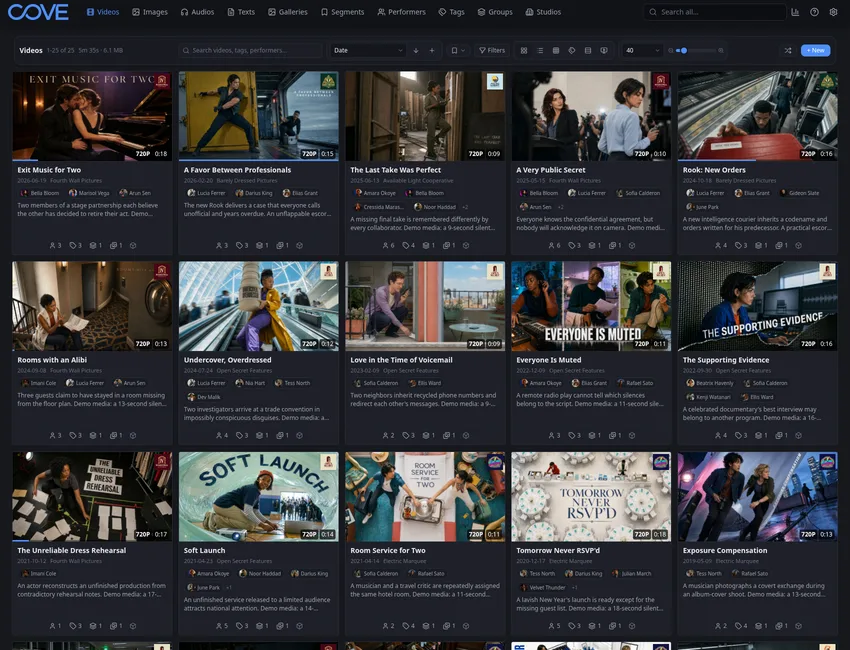
Cove videos page with search, sorting, filters, and page-size controls.
Search inside a media page, sort it, filter it, change how it looks, or show more items at once.

Search and filters

Narrow a big library down to what you want

When a library gets large, search needs to do more than match a filename. Cove lets you search inside a media page, sort the results, filter by details like tags and people, and save searches you use often.

  • Save searches you come back to often.
  • Choose a grid, list, wall, tagger, feed, or vertical page.
  • Show more items at once when you want to keep scrolling.
Read search docs

Tagging and occurrence tagging

Tag the whole item, or tag a specific person in a specific moment

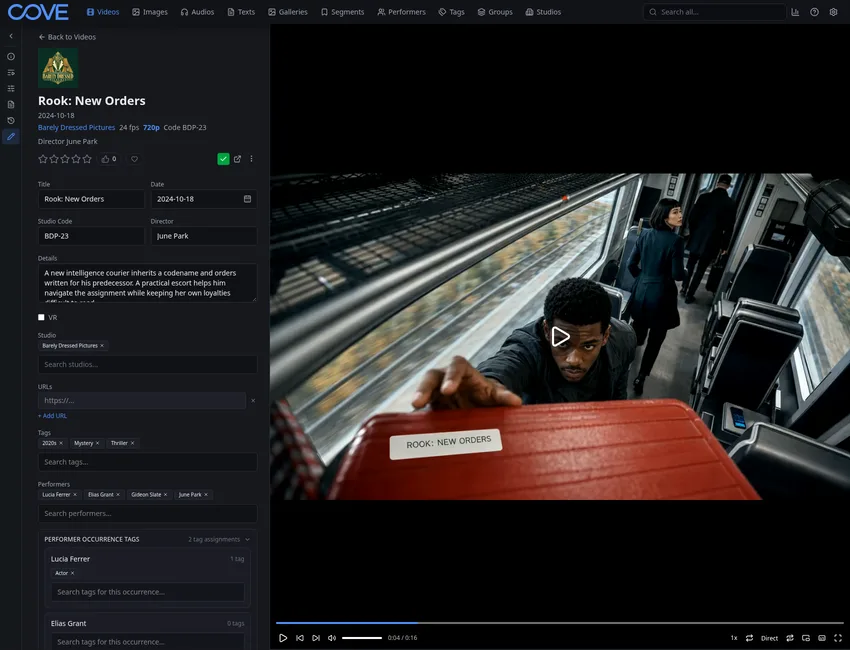
Some tags belong on an entire video. Others only make sense for one performer, one appearance, or one part of a video. Cove supports both, so your tags can describe what is actually happening.

  • Add a normal tag when it applies to the whole item.
  • Add a performer occurrence tag when it belongs to one person or appearance.
  • Use tag groups when related tags should stay organized together.
Read organizing docs
Cove video detail page showing performer occurrence tagging.
Performer occurrence tagging keeps a tag attached to the right person and moment.
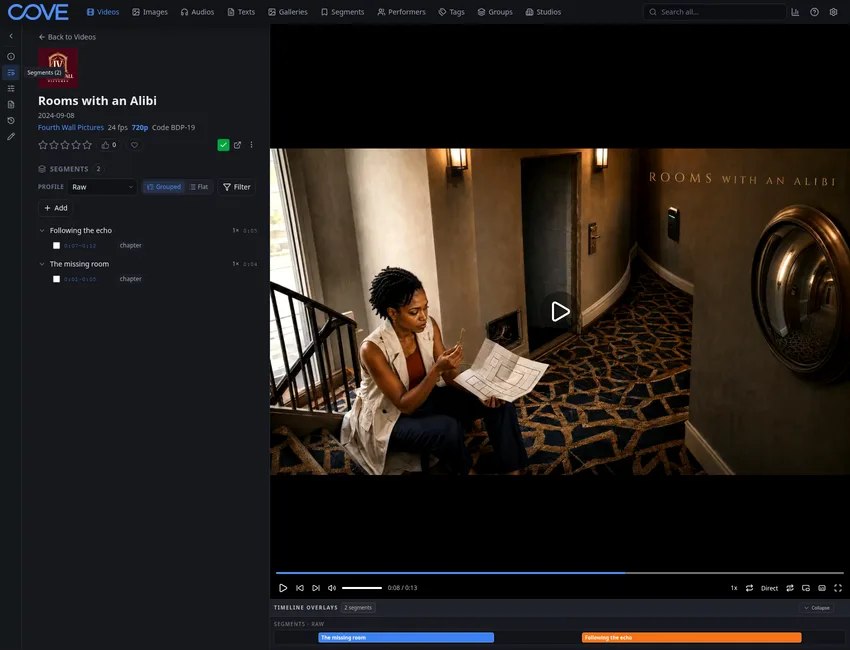
Cove video player with a raw segment profile and segment markers on the timeline.
The Raw profile shows the exact segment directly on the player timeline.

Segments and sub-videos

Mark useful parts inside a video

Segments let Cove remember meaningful parts of a video without making duplicate files. A segment can carry tags, performers, faces, timing, and other details that help you find or reuse that exact part later.

  • Save a specific time range inside a video.
  • Attach tags, people, faces, or notes to that part.
  • Use segments to build sub-videos and compilations.
Read segment docs

Groups and compilations

Collect related content without moving files around

Groups are useful for collections, playlists, projects, and compilations. They sit on top of your library, so you can organize content in new ways without changing the folders on disk.

  • Create collections that have their own page and details.
  • Use groups for playlists, themes, projects, or compilations.
  • Combine groups with segments when only part of a video belongs.
Read compilation docs
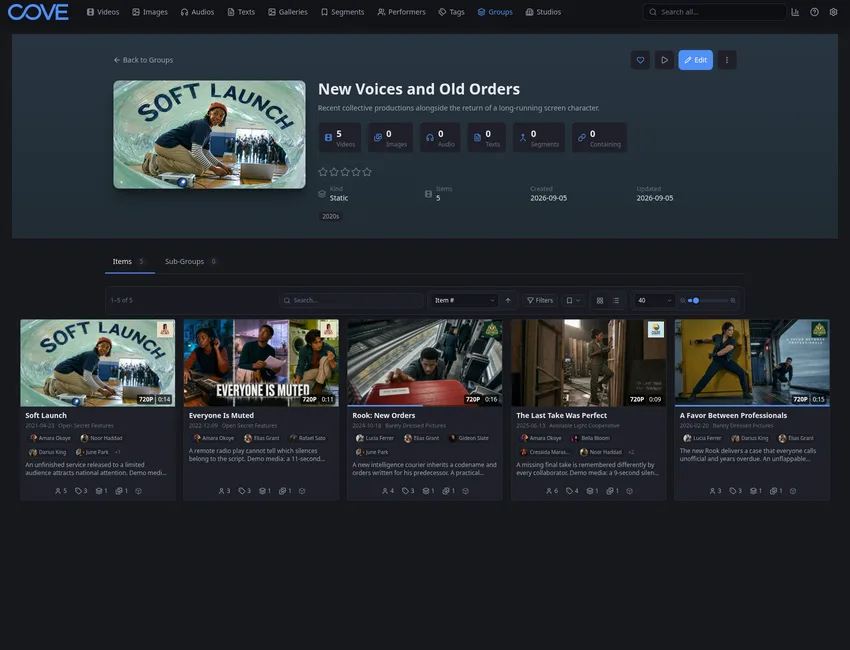
Cove group detail page for a curated collection.
Groups give collections their own page, details, and related media.
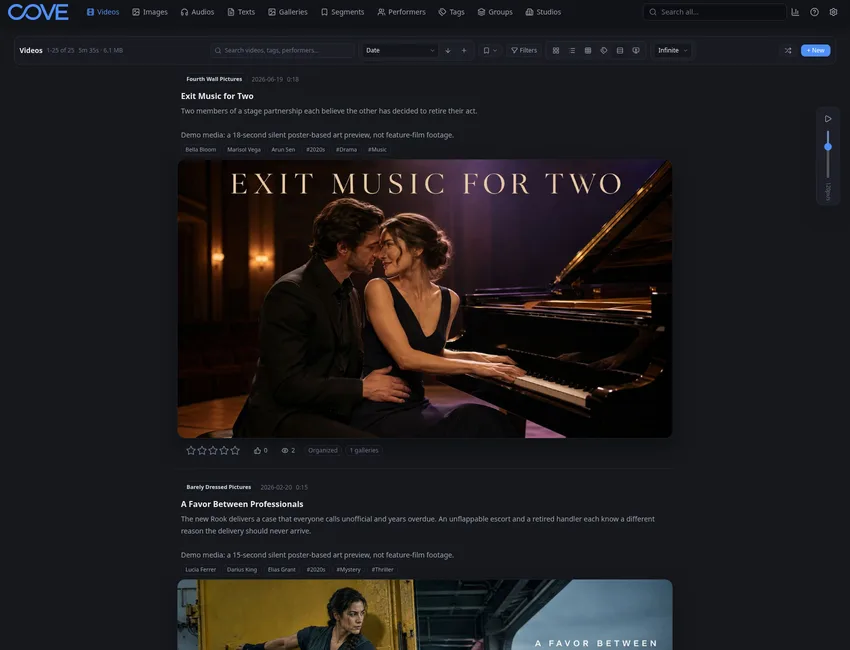
Cove feed view for videos.
Feed browsing gives Cove a more social media-like way to move through your library.

Feed browsing

Scroll through media like a feed

Feed browsing is for the times when a grid feels too stiff. You can move through filtered content in a more familiar, social media-style layout while still using Cove's tags, people, search, and library details.

  • Browse filtered media in a feed-style page.
  • Keep tags, people, groups, and search connected to what you are seeing.
  • Move between browsing and organizing without switching apps.
Read browsing docs

Vertical browsing

Use a tall, focused page when that fits the media better

Vertical browsing gives Cove another social media-style way to explore content. It is still your local library underneath, with the same search, tags, people, and saved details.

  • Browse one item at a time in a taller page.
  • Use it when a grid is not the right feel for the content.
  • Keep your library details close while you browse.
Read viewer docs
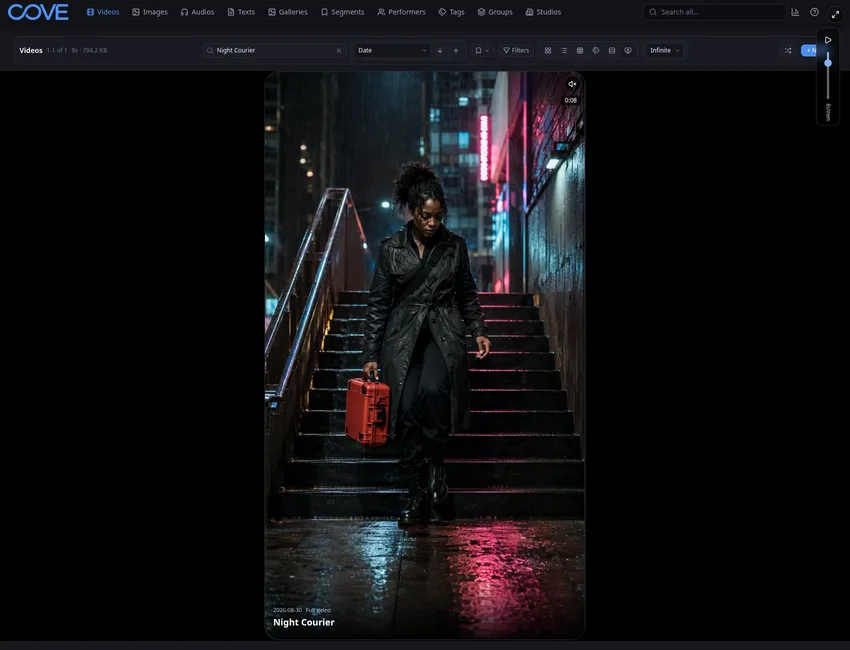
Cove vertical viewing mode for videos.
Vertical browsing is another way to explore the same local library.
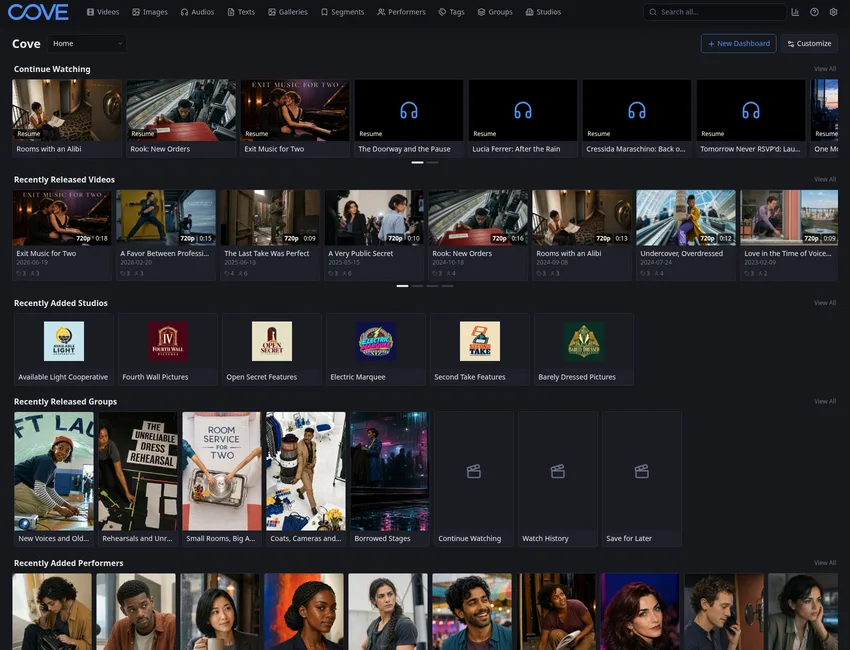
Cove dashboard showing continue watching and recent activity.
Continue watching and recent activity make it easy to return to what you were doing.

Watch later, history, and continue watching

Come back to what matters

Cove can remember what you started, what you recently opened, and what you saved for later. That keeps everyday use inside the organizer instead of scattered across bookmarks, notes, or browser history.

  • Resume unfinished media from continue watching.
  • Save items for later without making a full collection.
  • Return to recent activity from the home dashboard.
Read dynamic group docs

Metadata and downloaders

Bring in content and fill in the details

Cove can work with scrapers, metadata servers, and downloaders to help bring in media, identify it, add details, and show where those details came from. You stay in control of what gets applied.

  • Use scrapers and metadata servers to help identify content.
  • Install compatible downloaders through Cove's extension area.
  • Review automated changes instead of blindly accepting them.
Read metadata docs
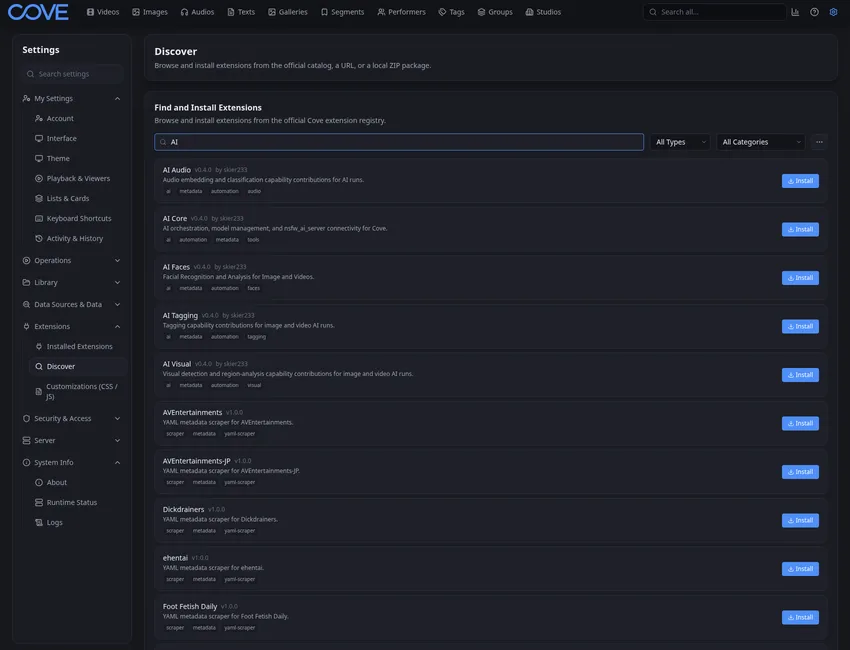
Cove extension discovery screen showing installable add-ons.
Discover scrapers, downloaders, and installable add-ons from inside Cove.
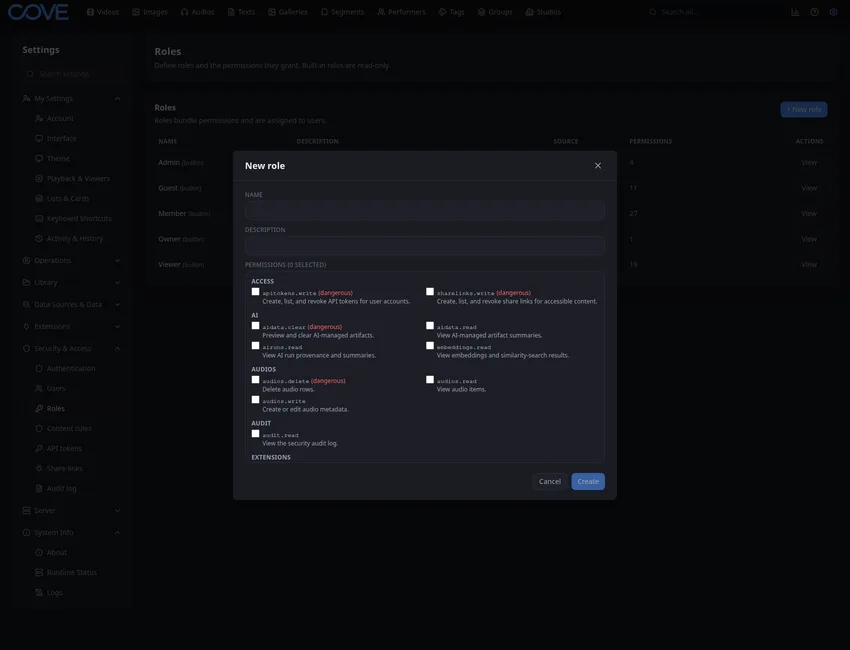
Cove role permission editor showing detailed permission controls.
Roles let you decide exactly what each kind of user is allowed to do.

Users, roles, and permissions

Share a library within your network without sharing one all-powerful login

Cove supports separate accounts, reusable roles, content rules, API tokens, and share links. That means one library can serve more than one person on your network without giving everyone the same level of access.

  • Give people only the access they need.
  • Limit what some users can see when needed.
  • Share selected content within your network without creating a full account.
Read security docs

Themes and customization

20 built-in beautiful themes, with more possible through extensions

Cove can feel quiet, neon, glassy, high-contrast, cinematic, or colorful without requiring a custom CSS project. Choose from 20 built-in themes, then add or create more through Cove's extension system.

  • Choose built-in themes such as emerald, rose, copper, cyberpunk, synthwave, and more.
  • Change the app's look from inside Cove.
  • Install or build additional themes with extensions.
View the screenshot tour
Cove videos page using the default theme. Default
Cove videos page using the dark midnight theme. Dark Midnight
Cove videos page using the dark emerald theme. Dark Emerald
Cove videos page using the dark rose theme. Dark Rose
Cove videos page using the copper noir theme. Copper Noir
Cove videos page using the golden hour theme. Golden Hour
Cove videos page using the signal dark theme. Signal Dark
Cove videos page using the liquid glass theme. Liquid Glass
Cove videos page using the sunset gradient theme. Sunset Gradient
Cove videos page using the cyberpunk theme. Cyberpunk
Cove videos page using the deep space theme. Deep Space
Cove videos page using the synthwave theme. Synthwave
Cove videos page using the ember theme. Ember
Cove videos page using the cinema dark theme. Cinema Dark
Cove videos page using the dark ocean theme. Dark Ocean
Cove videos page using the rainbow theme. Rainbow
20 Built-in Beautiful Themes.
Cove extension registry page.
Extensions can add downloaders, scrapers, pages, jobs, settings, APIs, themes, and more.

Extensions

Add more to Cove when you need it

Cove's extension system is meant for more than one small plugin hook. Extensions can add useful tools, new pages, background jobs, settings, APIs, themes, scrapers, and downloaders.

  • Install extensions through Cove's discovery page.
  • Add new tools without waiting for every idea to ship in the main app.
  • See what an extension can do before you enable it.
Read extension docs

Multiple libraries

Create, start, and switch between separate Cove libraries

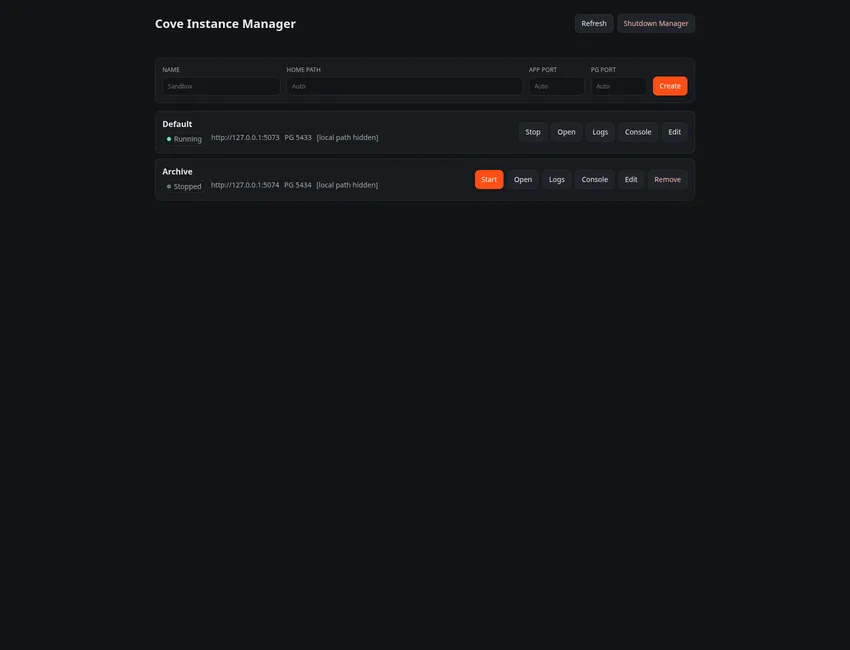
Sometimes one library is not enough. Cove's instance manager lets you keep separate libraries for private use, sharing, testing, or demos without manually juggling every setup detail yourself.

  • Create and name separate libraries that stay independent.
  • Start, stop, and open each library from one manager.
  • Keep each library's content, accounts, and settings separate.
See install options
Cove instance manager with local file paths hidden.
The instance manager helps you run separate local Cove libraries from one place.
Cove videos page with large-library browsing controls.
Search, filters, sorting, and page size controls help large libraries stay usable.

Speed and scale

Built to stay fast after your library stops being small

Cove is designed for larger collections, so search, browsing, filtering, and generated previews stay practical as the library grows.

  • Search and filters stay responsive across large libraries.
  • Hardware acceleration can use your graphics card for previews and thumbnails.
  • Large page sizes and scrolling views help big libraries feel easier to browse.
See install options