Explore your library
Tour Cove's home page, open a media item, and follow the relationships that connect your library.
Start from home
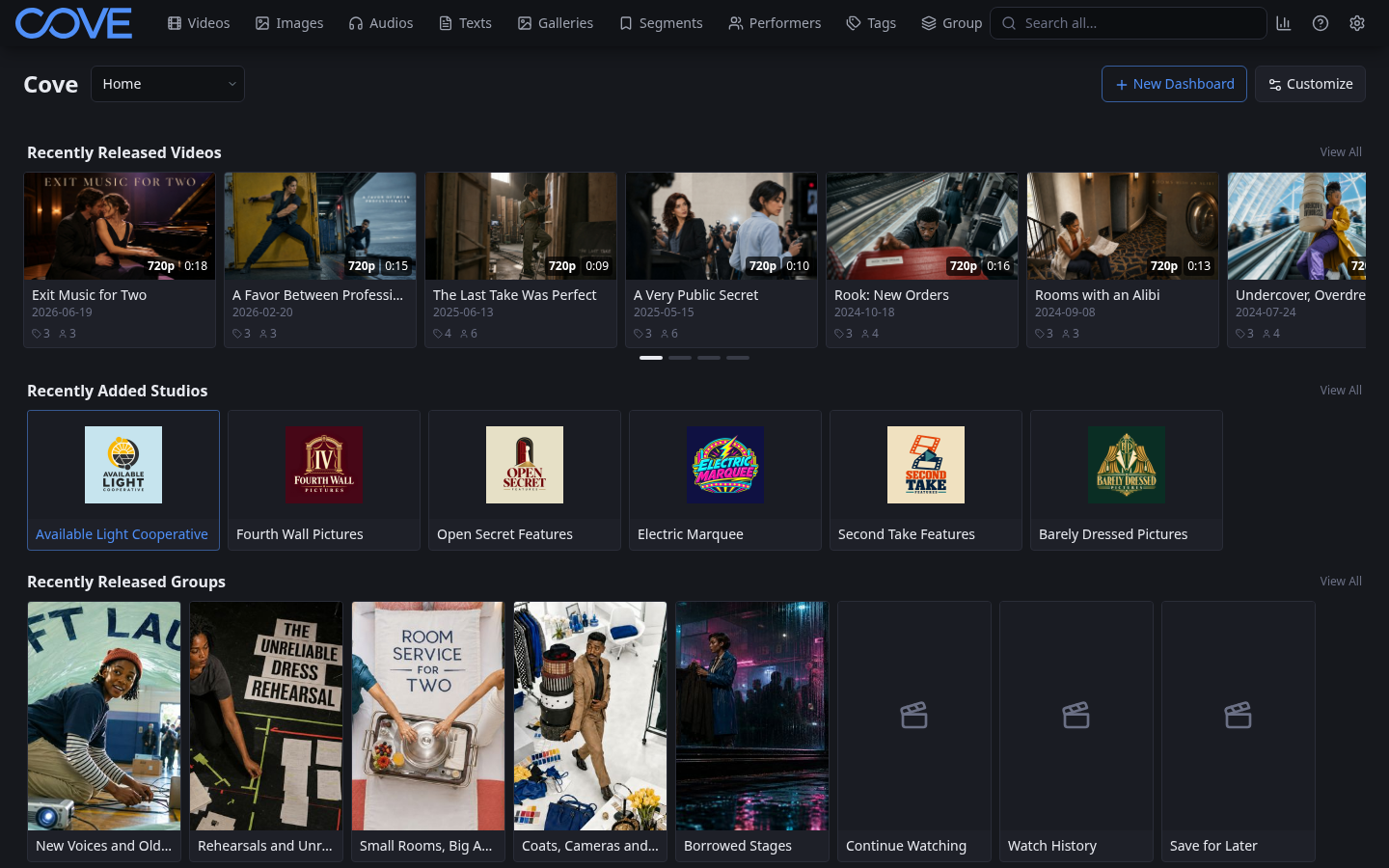
Start after Cove contains at least a few scanned or imported items. Select the Cove wordmark in the upper-left corner to return home from anywhere in the application.
- Videos, Images, Audios, Texts, and Galleries contain the primary media records.
- Segments, Performers, Tags, Groups, and Studios let you browse relationships and organization shared by those records.
The home page brings useful parts of both together. Its rows can include recently released media, recently added performers or studios, groups, and personal rows such as Continue Watching. Select View All beside a row for its complete list.
Open one item
- Select Videos in the navigation bar.
- Open any video card whose title you recognize. If you have only one scanned item, use that one.
- Play a few seconds, then pause. Cove can use that progress for Continue Watching.
- Look through the details beside the player before changing anything.
A detail page combines descriptive details and file quality; tags, performers, groups, galleries, and source URLs; your rating, favorite, like, and playback state; and tabs for segments, playback filters, file information, history, and editing.
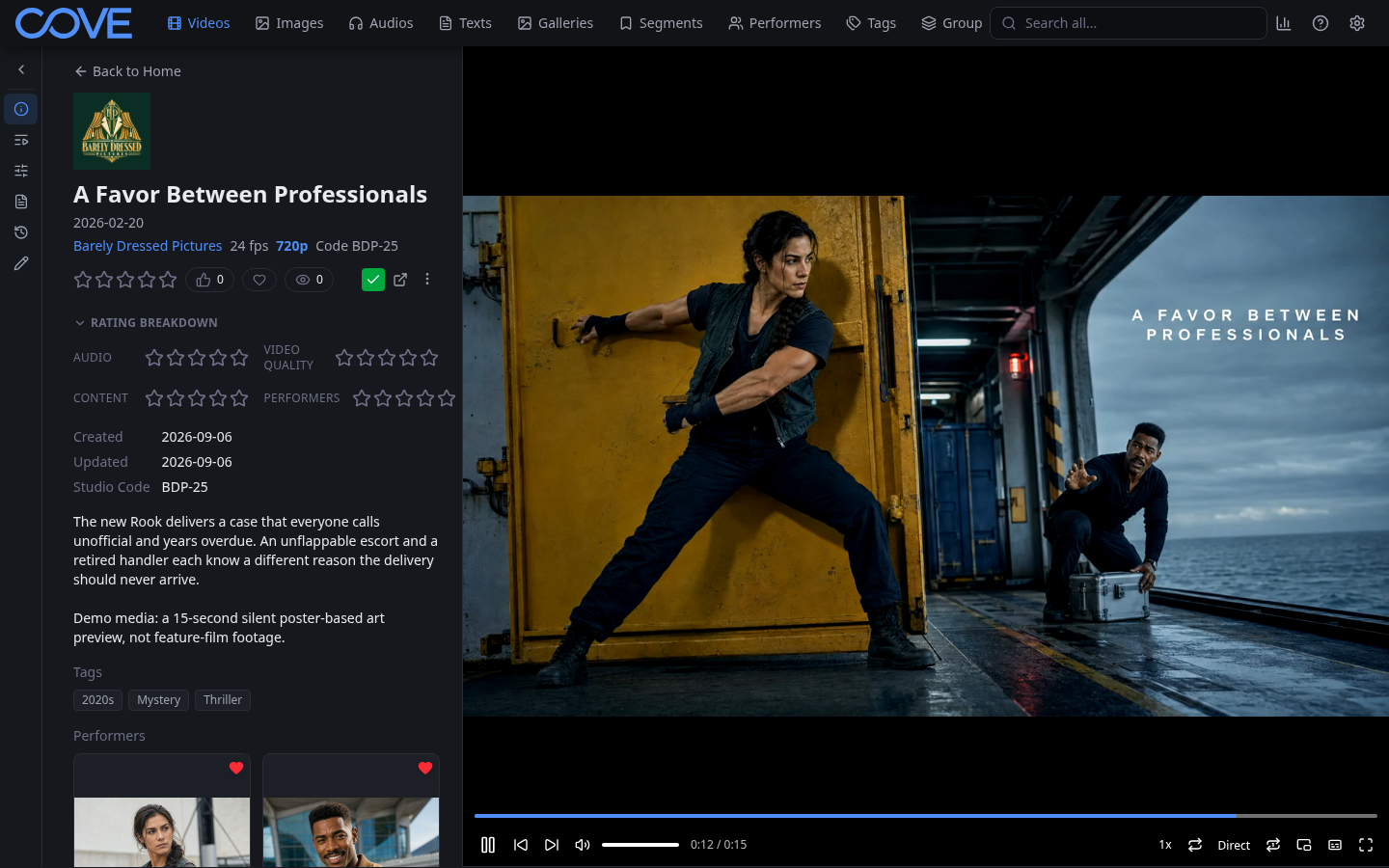
File details describe the source Cove can play. Tags, groups, people, studios, and descriptive fields make that source easier to understand and find. Playback progress and favorites belong to your user rather than changing the shared description for everyone.
Follow a relationship
Select one tag, performer, studio, or group shown on the item. Cove opens that record so you can see the other library items connected to it. Use Back to return to the item.
- Start from a media item you know.
- Follow a meaningful relationship.
- Discover another relevant item.
- Return or keep following the library's connections.
Leave one personal breadcrumb
Return to Videos and choose the bookmark control on a card to add it to Save for Later. Then open Groups → Save for Later and confirm the item appears. This built-in group is personal and updates automatically; it does not change the item's shared metadata.
You now know how to move from home to an item, understand its detail page, and browse or save a relationship. Continue by learning when to use global search and when to narrow a single list.