Custom fields
Define extra metadata, add values to library records, and use custom fields for filtering and sorting.
Define the field, then fill in its values
A custom field adds metadata that Cove does not provide as a standard field. The definition controls its key, label, type, eligible record types, and query behavior. Each eligible video, audio, image, text, performer, tag, studio, gallery, or group can then store its own value for that definition.
Choose a type that matches the value
| Type | Use it for | Filtering and sorting |
|---|---|---|
| Text | A short name, identifier, or other single-line value | Optional |
| Long Text | Notes, transcripts, or other unbounded multiline text | Presence filter only; no content filtering or sorting |
| Number | A score, count, rank, or measurement | Optional, with numeric comparisons and order |
| Boolean | A true or false state | Optional |
| Date | A calendar date | Optional, with date comparisons and order |
| URL | A web address that should open as a link | Optional |
| Enum | One value from a controlled list you define | Optional |
| JSON | A structured document containing objects, arrays, or scalar values | Presence filter, plus configured Text, Number, or Boolean paths |
Prefer the narrowest type that represents the value. A Number sorts numerically, a Date sorts chronologically, and an Enum prevents spelling variants. Use Long Text when the value is primarily for reading. Use JSON when several related properties belong together and you need to preserve their structure.
Add your own custom field
- Open Settings → Library → Custom Fields and choose Add field.
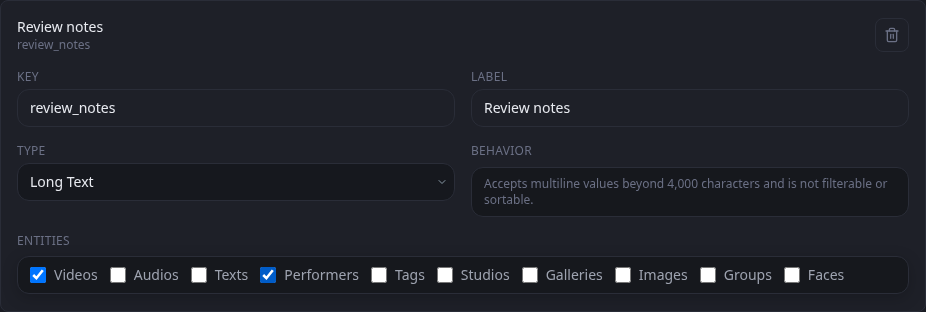
- Enter a stable Key for Cove and integrations, and a readable Label for people. For example, use review_notes as the key and Review notes as the label.
- Choose the Type. For Enum, enter one allowed option per line. For JSON, configure queryable paths only for properties that need filtering or sorting.
- Under Entities, select every kind of record that should carry this field.
- For an ordinary queryable type, enable Filterable, Sortable, or both only when the field should appear in those controls.
- Move focus out of a text control after editing it. Cove saves valid custom-field settings automatically.
Store a value on a record
- Open an eligible video, audio, image, text, performer, tag, studio, gallery, or group.
- Choose Edit and find Custom Fields.
- Enter or select the value using the type-specific control. JSON opens a validated editor with Format JSON and Apply JSON actions.
- Choose Save on the record editor.
- Return to Details to confirm the value. Long Text keeps line breaks, URLs become links, and JSON appears as a readable expandable document.
Leaving a field unset means that record has no value. To clear an existing value, empty its control or choose Unset where available, then save the record. A definition may be shared by several entity types, but every value still belongs to one specific record.
Filter or sort with a custom field
Filter records
- Open the list page for an entity type enabled on the field and choose Filters.
- Select Custom Fields, then choose Add custom field filter.
- Choose the Field. For JSON, also choose either Presence or one configured path under Target.
- Choose a Match operator, enter the value when the operator needs one, and choose Apply. The available operators follow the field or JSON-path type.
Sort records
- Open the Primary sort menu above a list.
- Choose the entry beginning with Custom: and the field label. A JSON target is shown as Custom: field label › path label.
- Use the adjacent direction button to switch between ascending and descending order.
- Choose Add another sort when a second field should break ties.
Recipes
These starting points show when a simple typed field is clearer than a JSON document.
Keep detailed review notesStore readable multiline text without making its contents a query target.
- Add a field with key review_notes, label Review notes, and type Long Text.
- Enable the supported entity types whose records need notes.
- Open one eligible record, choose Edit, and enter the notes under Custom Fields.
- Save and read the formatted multiline value on the detail page.
Prioritize a review queueUse a Number for range filters and stable numeric ordering.
- Add a Number field named Review priority and enable both Filterable and Sortable.
- Store a priority value on the records that belong in the workflow.
- On the matching list page, filter Review priority with Not Null to show only records in the queue.
- Select Custom: Review priority as the Primary sort and choose descending order to put the highest values first.
Control a workflow stateUse an Enum to avoid several spellings for the same status.
- Add an Enum field named Review status.
- Enter Draft, Ready, and Complete as separate options and enable Filterable.
- Choose one of those values when editing each eligible record.
- Filter Custom Fields → Review status with Equals and select the stage you want to work on.
Custom fields imported from Stash
During a first-run Stash import, Cove creates custom-field definitions with readable normalized keys and preserves the values on their imported records. A field becomes Number when all of its values are compatible numbers, JSON when all values are Cove-compatible JSON and the field is not numeric, and Long Text otherwise. Imported Number fields are filterable and sortable. Imported JSON fields keep the full documents but have no queryable paths until you configure them.