Use playback and the timeline
Control video playback and use timeline overlays to jump to meaningful moments.
Control the current video
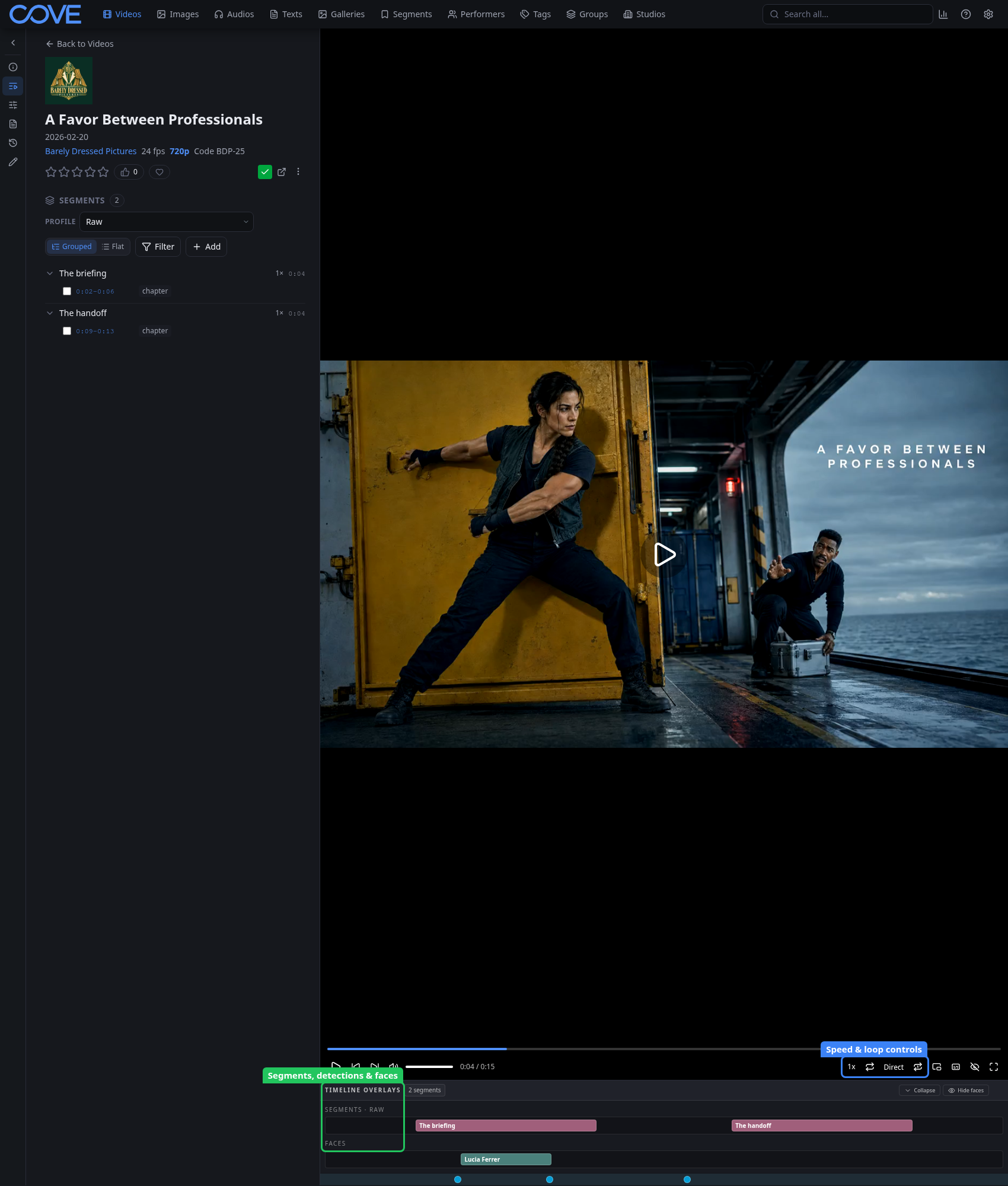
- Play or pause, seek, change volume, and enter fullscreen from the player controls.
- Change playback speed when you need to review a moment more slowly or move through it faster.
- Set and repeat a loop when you need to inspect the same interval.
- Use the active shortcut preset for keyboard playback controls.
Use more than a progress bar
Timeline swimlanes show where segments, detections, faces, and other supported overlays occur. Select an interval to jump directly to that moment, and collapse or filter overlays when the timeline becomes crowded.