JSON custom fields
Store structured JSON and expose selected property paths as typed targets for filtering and sorting.
Store a document, query selected values
A JSON custom field stores one complete JSON value on each eligible record. Cove validates the value while you edit it and presents objects and arrays as a readable expandable document on the detail page. You can filter for the presence of the document, but its contents are filterable or sortable only through configured paths.
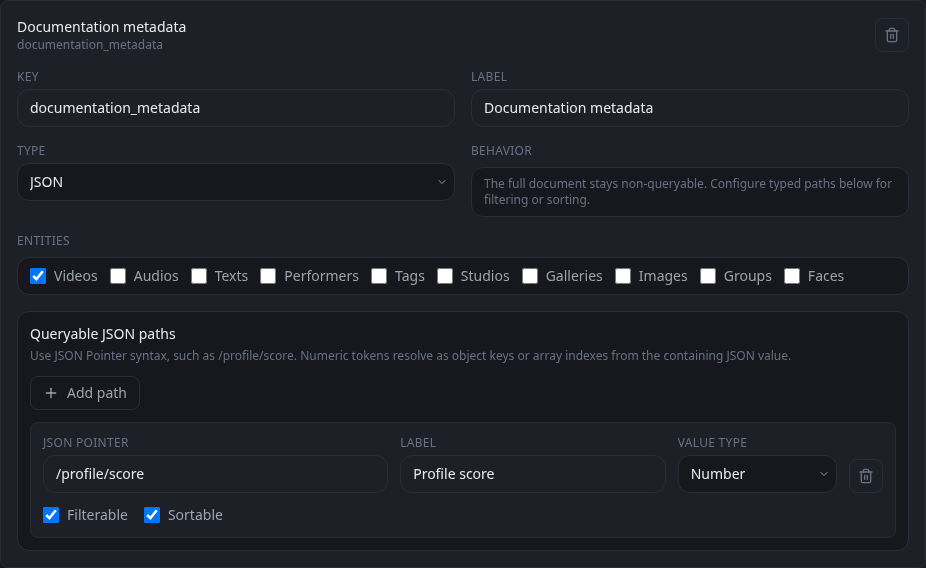
When one property should drive a filter or sort, add a queryable JSON path to the field definition. Each path gives Cove a JSON Pointer, a reader-friendly label, an expected Text, Number, or Boolean type, and separate Filterable and Sortable choices. You can add several paths without flattening or duplicating the stored document.
Write the JSON Pointer
{
  "production": {
    "status": "review",
    "score": 87,
    "approved": false
  },
  "sources": [
    { "name": "catalogue" }
  ]
}| JSON Pointer | Value type | Resolved value |
|---|---|---|
| /production/status | Text | review |
| /production/score | Number | 87 |
| /production/approved | Boolean | false |
| /sources/0/name | Text | catalogue |
- Begin with / and add one /-separated token for each object property or array position.
- Property names are case-sensitive. /production/score and /Production/score are different paths.
- A numeric token selects an array position when the current value is an array, or a property with that exact name when the current value is an object.
- Escape a slash inside a property name as ~1 and a tilde as ~0. For example, the property a/b~c uses the token a~1b~0c.
- The root pointer is not available as a query target. Point to a non-root Text, Number, or Boolean value.
Configure queryable paths
- Open Settings → Library → Custom Fields and add or locate the JSON field.
- Under Queryable JSON paths, choose Add path.
- Enter the JSON Pointer and a Label that describes the resolved property rather than the whole document.
- Choose the property's Value type: Text, Number, or Boolean.
- Enable Filterable, Sortable, or both. Add another path for every other property that needs its own query control.
- Move focus out of a text control after editing it. Cove saves the valid definition automatically and reconciles any database indexes needed for filterable paths.
Enter and review JSON values
- Open an eligible video, audio, image, text, performer, tag, studio, gallery, or group and choose Edit.
- Under Custom Fields, choose Add JSON or Edit JSON for the field.
- Enter the complete JSON value. Choose Format JSON to validate and indent it.
- Choose Apply JSON, then choose Save on the record editor.
- On the Details tab, choose View JSON to inspect the expandable document.
The editor will not accept malformed JSON. Keep numbers unquoted when a Number path should resolve them, and use true or false without quotes for a Boolean path. Quoted values are strings even when they look like numbers or booleans.
Use a JSON target in a list
Filter a target
- Open an eligible entity list and choose Filters → Custom Fields.
- Choose Add custom field filter and select the JSON Field.
- Under Target, choose a configured path label. Choose Presence instead when only the existence of the whole JSON value matters.
- Choose a type-appropriate Match operator and enter a value when required, then choose Apply.
Sort by a target
- Open Primary sort above the list.
- Choose Custom: field label › path label.
- Choose ascending or descending order, and add another sort when records with equal or missing values need a stable tie-breaker.
Recipes
Start with the shape of your document, then expose only the paths that support a real browsing workflow.
Filter by status and sort by scoreExpose two properties from one structured review document.
{ "review": { "status": "ready", "score": 92 } }- Add /review/status as Text and enable Filterable.
- Add /review/score as Number and enable Sortable.
- Filter the Status target with Equals ready.
- Choose Custom: field label › Score as the Primary sort and select descending order.
Query a property in the first array itemUse a zero-based array position in the pointer.
{ "checks": [ { "passed": true }, { "passed": false } ] }- Add /checks/0/passed as a Boolean path.
- Enable Filterable.
- Filter the target with Equals True to find records whose first check passed.
Address property names containing / or ~Use JSON Pointer escapes without changing the stored keys.
{ "measurements": { "width/height~source": "1920x1080" } }- Start the pointer with /measurements/.
- Write width~1height~0source for the property token.
- Configure /measurements/width~1height~0source as Text.
~1 represents / and ~0 represents ~ inside a token. Other tilde escape sequences are invalid.
Find missing or mistyped valuesUse Is Null as a cleanup view after defining a typed path.
- Configure the intended property with its real scalar type and enable Filterable.
- Open Filters → Custom Fields and choose that target.
- Set Match to Is Null and apply the filter.
- Review records where the property is absent, null, or stored as another type, then correct their JSON values.