Combine filters
Combine ordinary and related-record filters, control how groups match, and require distinct related performers when one match is not enough.
Choose how a group matches
Select a group's operator when the conditions should relate differently. The operator applies only to the direct conditions and subgroups inside that group.
- All requires every direct condition or group to match.
- Any requires at least one direct condition or group to match.
- Just One requires exactly one direct condition or group to match.
- None requires every direct condition or group not to match.
Filter through related records
Each Related Performers condition can itself require several facts about the same performer. Its relationship mode controls whether at least one performer, every performer, or no performer must match those nested facts. The surrounding group then controls how the separate relationship conditions work together.
Shape and reuse the result
Select a condition to edit it, or select a group operator to change its direct children. A condition's menu can move or remove it.
Create a subgroup
- Open the group menu and choose Create subgroup.
- Select the sibling conditions that belong together.
- Choose All, Any, Just One, or None for the new group.
A subgroup lets only part of the search use a different rule. You can dissolve it later without losing its conditions. Choose Cancel grouping to leave the search unchanged. A None subgroup can contain one or more selections; the other subgroup types need at least two.
For keyboard control, Tab moves between control groups, arrow keys move within controls that use roving focus, and Enter or Space activates the focused control. Escape closes the current picker or menu, cancels a keyboard move, or returns to the preceding filter view.
Apply the filter and check that the result represents the question you meant to ask. If it is a view you will revisit, save it only after that check so the named filter preserves the finished expression.
Recipes
Use these practical combinations as starting points, then replace the example values with the ones that matter in your library.
Include archive URLs but exclude private entriesCombine two URL conditions in one All group.
The permanent demo library includes public and private archive URLs on its records, so you can reproduce this example after any demo reset.
- Open Videos, choose Filters, and select URL.
- Set the first condition to Includes and enter archive.example.
- Choose Add another URL, set it to Excludes, and enter /private/.
- Open Combine Filters and leave the two URL conditions in an All group.
- Choose Apply. The result contains archive URLs except those in the private path.

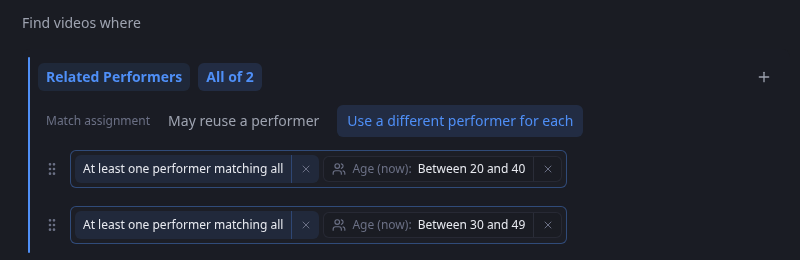
All requires both URL statements to be true for the same video. Require different performers in overlapping age rangesUse distinct match assignment when separate related records must satisfy separate conditions.
- In Videos, add Related Performers and choose Age (now).
- Set Age (now) to Between 20 and 40.
- Choose + in the bottom-left corner to add another performer condition, set its Age (now) to Between 30 and 49, then choose Apply to add the condition.
- Open Combine Filters and leave both conditions in an All group.
- Set both relationship conditions to At least one matching performer, then choose Use a different performer for each under Match assignment.
- Choose Apply to use the completed filter.
May reuse a performer allows one performer aged 30 through 40 to satisfy both conditions. Use a different performer for each instead requires one related performer for each range; Cove assigns the matches rather than merely counting performers on the video.
Distinct assignment is useful when several related records must play different roles in one result.