Customize keyboard shortcuts
Choose a preset, change shortcut bindings, and move a personal preset between Cove accounts.
Find shortcuts and their current bindings
Open Settings, choose My Settings, then Keyboard Shortcuts to search every action or change the active setup.
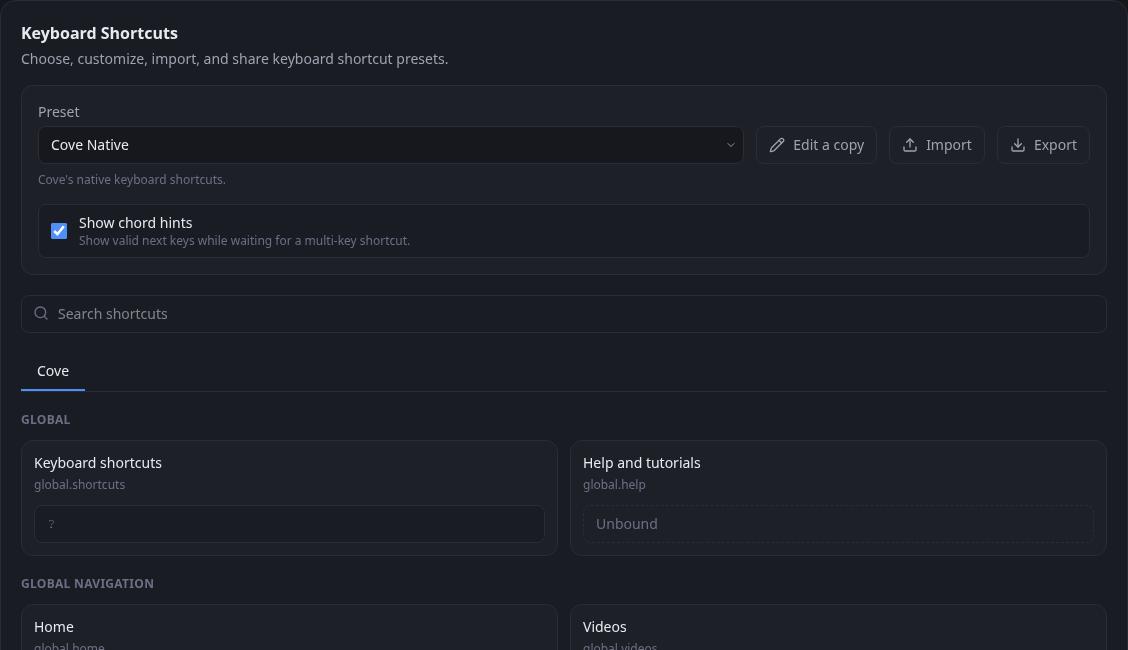
- Use the search box to find an action by its label, group, or action ID.
- Choose Cove to see Cove's actions, or choose an extension tab to see shortcuts contributed by that extension.
Choose a starting preset
Select a preset at the top of Keyboard Shortcuts. Cove Native uses Cove's default mappings, the Stash-compatible preset uses familiar mappings for equivalent actions, and Disabled turns configurable shortcuts off.
- Select the preset whose behavior is closest to what you want.
- Try a few global, list, and player shortcuts before deciding whether to customize it.
Create and edit your own preset
Choose Edit a copy to create a personal preset from the active preset. Personal presets can be renamed, edited, and deleted.
- Find the action you want to change and remove any binding you no longer want.
- Choose Add binding, press up to three keys or modifier chords, then press Enter to save.
- Turn on Show chord hints if you want Cove to show valid next keys while a multi-key shortcut is in progress.
Import or share a preset
Shortcut presets are portable JSON files. Export the effective preset to keep a copy or share it, and import a preset file to add it to your account.
- Choose Export to download the preset you currently use.
- On another account, choose Import and select the exported JSON file.
- Select the imported preset and confirm its bindings in the shortcut reference.